Alerting and Notifications
Detecting something is only useful if the right people know about it. Alerting settings let you define exactly when EyesOnIt should consider a detection significant enough to raise an alert, and notification settings let you connect that alert to a Genetec event so it flows into your existing event-action rules.
Alerting is configured per region. Notification settings apply to the camera as a whole.
Region — Alerting
Select the Region - Alerting entry for a region in the navigation tree.
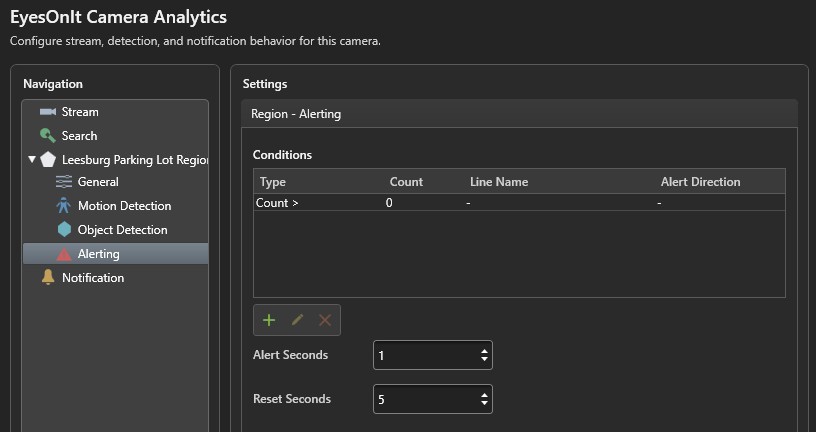
Alert conditions
Alert conditions let you be specific about what constitutes an alert-worthy detection. A region can have one or more conditions, and EyesOnIt raises an alert when the conditions are met during a detection cycle. The conditions are displayed in a table:
| Column | Description |
|---|---|
| Type | The condition type — count-based or line-cross. |
| Count | The count threshold for count-based conditions. |
| Line Name | The line referenced by a line-cross condition. |
| Alert Direction | The crossing direction for a line-cross condition. |
Use the add (+), edit (pencil), and delete (×) buttons in the toolbar below the table to manage conditions. You can also double-click any row to edit it.
Condition dialog
When you add or edit a condition, a dialog opens with the following fields:
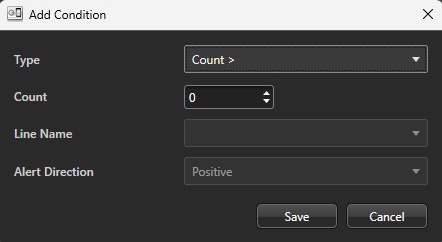
| Field | Description |
|---|---|
| Type | Count >, Count <, Count =, or Line Cross. |
| Count | The number to compare against for count-based conditions. This field is disabled when Type is set to Line Cross. |
| Line Name | The line to monitor for a Line Cross condition. The dropdown shows only the lines you have defined for this camera. |
| Alert Direction | For Line Cross: Positive (crossing in the same direction as the line arrow), Negative (crossing in the opposite direction), or Both. |
Alert timing
In addition to conditions, you can tune the timing of alerts to reduce noise and control how frequently the system responds.
| Setting | Description |
|---|---|
| Alert Seconds | How long a detection must remain active before the alert fires. Setting this above zero helps filter out brief, transient detections that you might not want to act on. Range: 0–600 seconds. |
| Reset Seconds | How long EyesOnIt waits without a qualifying detection before it is ready to fire another alert for the same region. This prevents a sustained detection from generating a flood of repeated alerts. Range: 0–3600 seconds. |
Notification settings
Select the Notification entry in the navigation tree to configure what happens in Genetec when an alert fires.
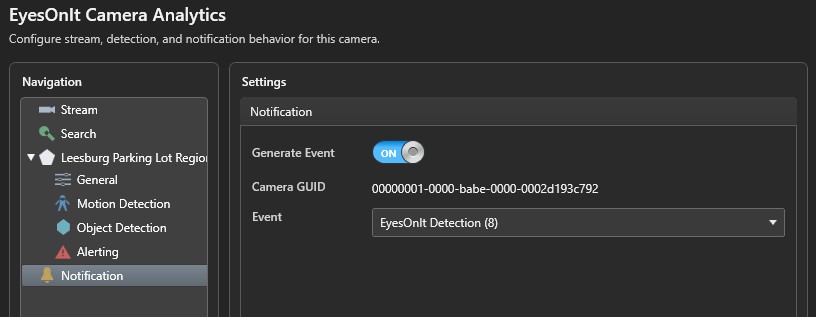
| Setting | Description |
|---|---|
| Generate Event | Turn this on to have EyesOnIt fire a Genetec event when an alert condition is met. |
| Camera GUID | The Genetec GUID for the camera associated with this stream. This is read-only and provided for reference. |
| Event | The specific Genetec event to generate. This dropdown is only active when Generate Event is on, and shows the events available in your Genetec system. |
When Generate Event is enabled, EyesOnIt triggers the selected event on the associated camera in Genetec each time an alert fires. From there, Genetec handles it like any other event — you can use your standard event-action rules to send notifications, trigger outputs, start recording to a specific archive, or anything else your system is configured to do.